


- Jill
Questions
0
Answers
121
-
iSLM 的配置需求如下:
– 使用者客戶端:
* iSLM 在 Google Chrome、Microsoft Edge、iOS Safari 中皆可以順利運行
* Mac OS Safari、Firefox 則是有部份 3D View 顯示與預覽功能無法完整使用,主要功能無問題– 安裝 iSLM 的主機:
* 需要安裝最新版的 Chrome 瀏覽器運行專案截圖功能- 631 views
- 1 answers
- 0 votes
-
- 622 views
- 1 answers
- 0 votes
-
iSLM 可以架設 AWS EC2 及 Azure VM 服務上。
– 建議記憶體為 32G 以上(還是需要看網格大小、設置的排程數量適當增加)
– CPU建議4核以上
– 硬碟建議1T以上(需看專案大小、數量)
- 658 views
- 1 answers
- 0 votes
-
若 iSLM 在安裝完成後顯示無法連上網站,原因可能有二:
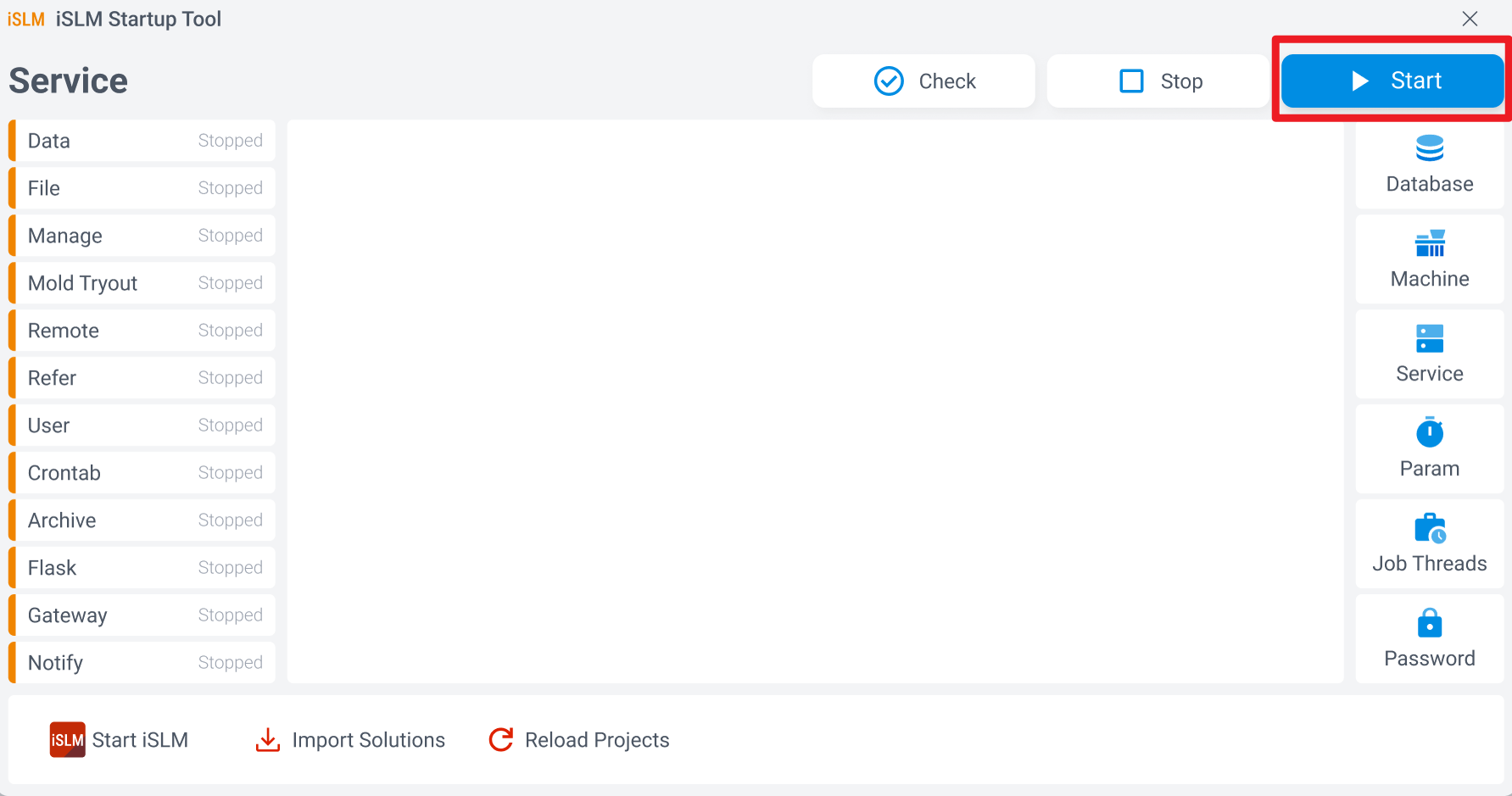
1. 尚未啟動 Startup Tool,需先開啟 Moldex3D iSLM Startup Tool,並點擊 Start 按鈕啟動 iSLM
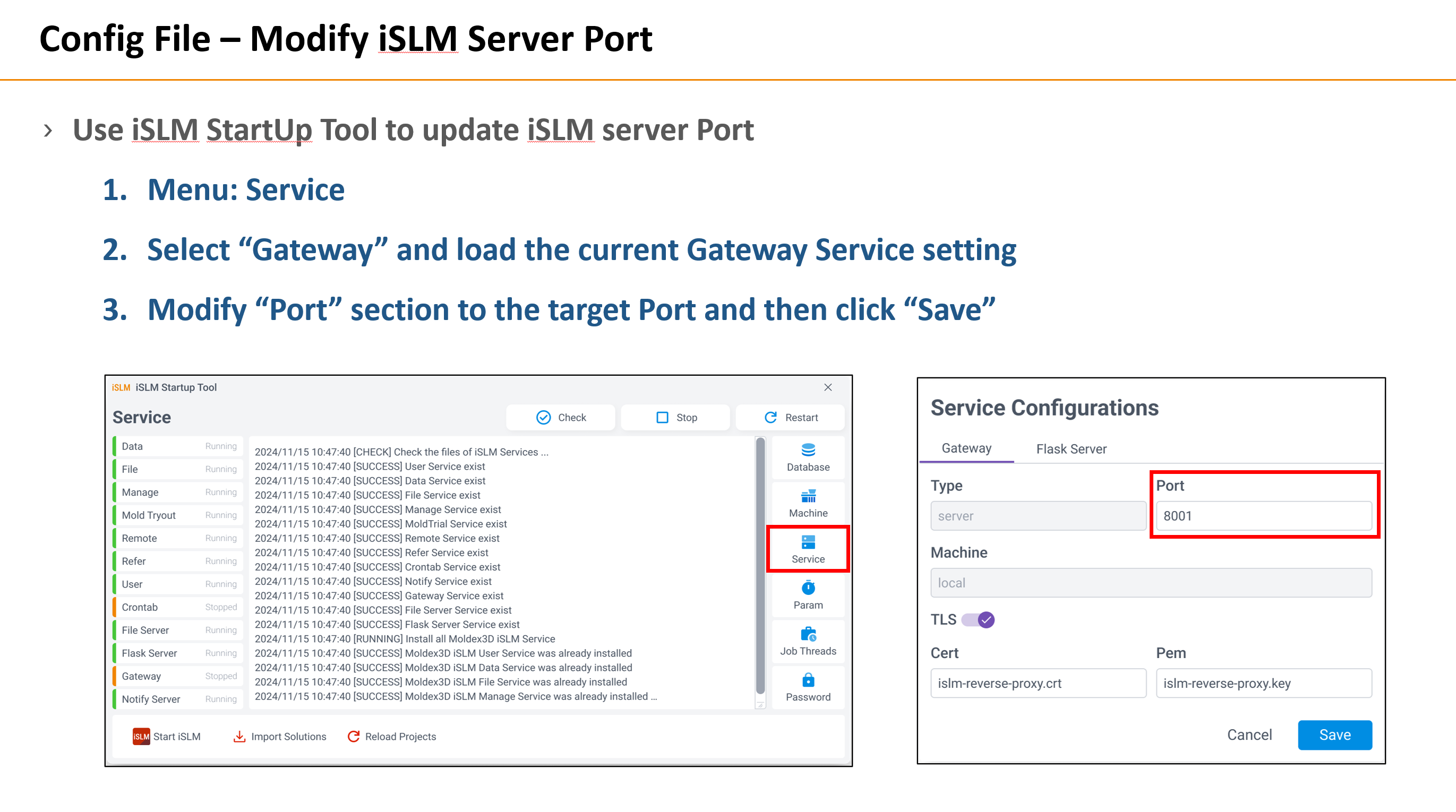
2. Port 設定的關係。若設定為 “80”,則可直接開啟 iSLM 網頁;不過若 Port 設定非 80,則需在網址後輸入 ” : + 設定的 Port 號”
- 598 views
- 1 answers
- 0 votes
-
若想透過使用 AD 帳號登入 iSLM 平台,則可於 系統設定 的 iSLM 設定>LDAP 功能設置帳號,詳細建立資訊請參照 Help 5.9.5 章節 :
https://university.moldex3d.cloud/#/help?url=2024%2Fislm%2Fzh-TW%2Findex.html
- 686 views
- 1 answers
- 0 votes
-
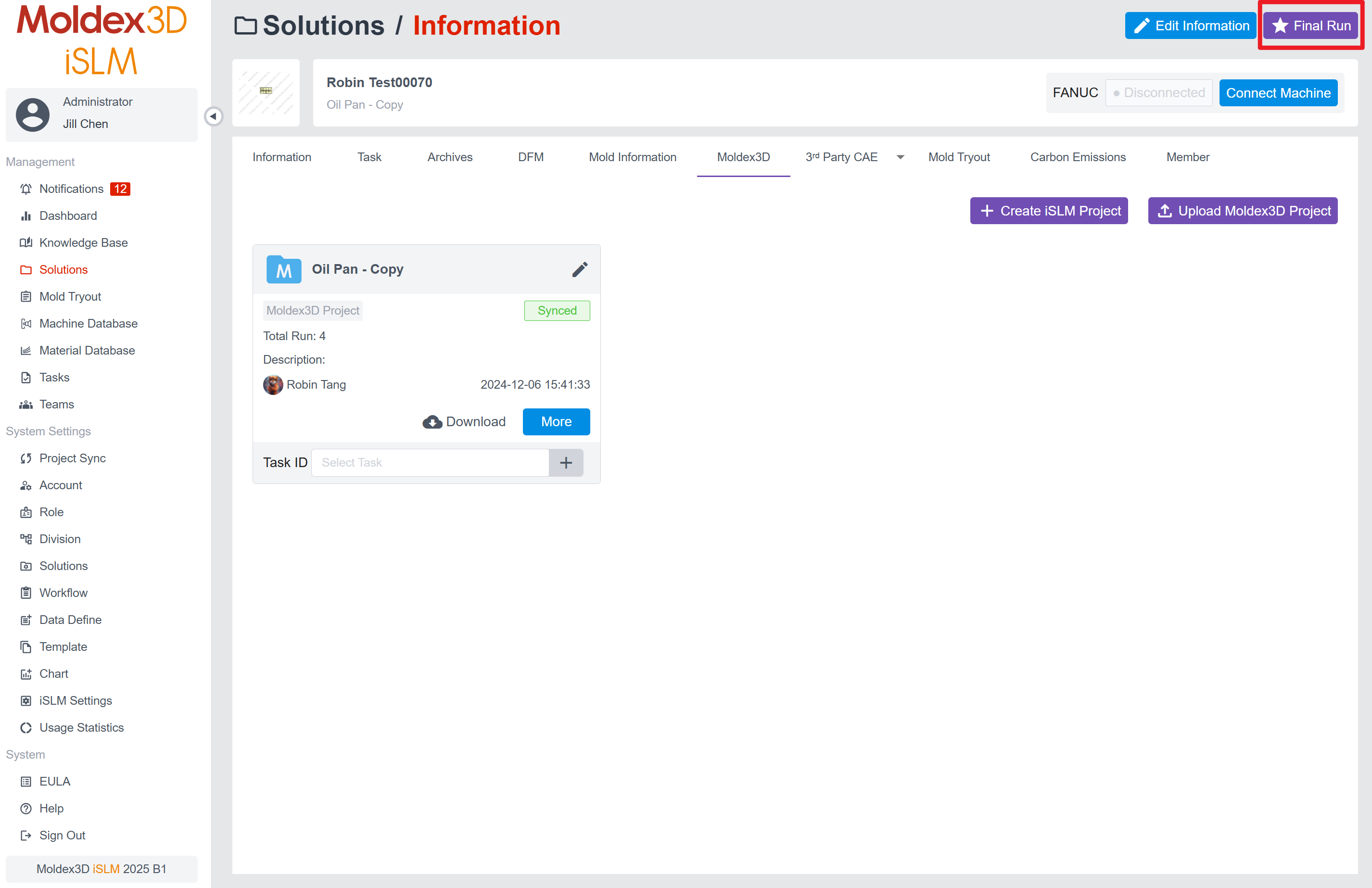
相似度搜尋功能的來源是專案的最終組別(Final Run);可透過檢視專案(Solution)查找專案的最終組別。
- 858 views
- 1 answers
- 0 votes
-
iSLM 中專案的 Security Level 有三種類型: Public、Restricted、Confidential
1. Public: 所有人都可以在專案列表中讀取此專案,也可以在知識庫的專案列表中連回此專案瀏覽細節
2. Restricted: 僅有 成員 才可以在專案列表中讀取此專案,但所有人都可以在知識庫的專案列表中瀏覽此專案細節(包含3D模型)。
3. Confidential: 僅有 成員 才可以在專案列表中讀取此專案,但所有人都可以在知識庫的專案列表中瀏覽此專案細節(3D模型除外)。
- 977 views
- 1 answers
- 1 votes
-
目前 iSLM 平台上的 Moldex3D Project 種類共有三種: iSLM Project、Moldex3D Project 和 Tryout Analysis Project
1. iSLM Project: 透過 創建 工作功能,完成模擬分析工作流程後所產生的專案
2. Moldex3D Project: 透過 上傳 專案功能,將 Moldex3D 專案上傳至 iSLM 平台上
3. Tryout Analysis Project: 當此專案
- 658 views
- 1 answers
- 1 votes
-
在匯入試模紀錄表(Import Mold Tryout Excel Record)中,iSLM 支援上傳 XLSX 及 XLS 格式的試模表範本。
另外,您可以從以下連結中取得試模紀錄表範本檔案的範例,並重新定義您試模紀錄的 tag 變數,iSLM 就會根據範本中的 tag 內容抓取對應的值資料(另一份試模紀錄表檔案)導入至 試模管理 > 成型記錄 頁面中。若您想確認導入資料的狀況,可從以下連結取得試模資料紀錄表範本的檔案:
- 1172 views
- 1 answers
- 1 votes
-
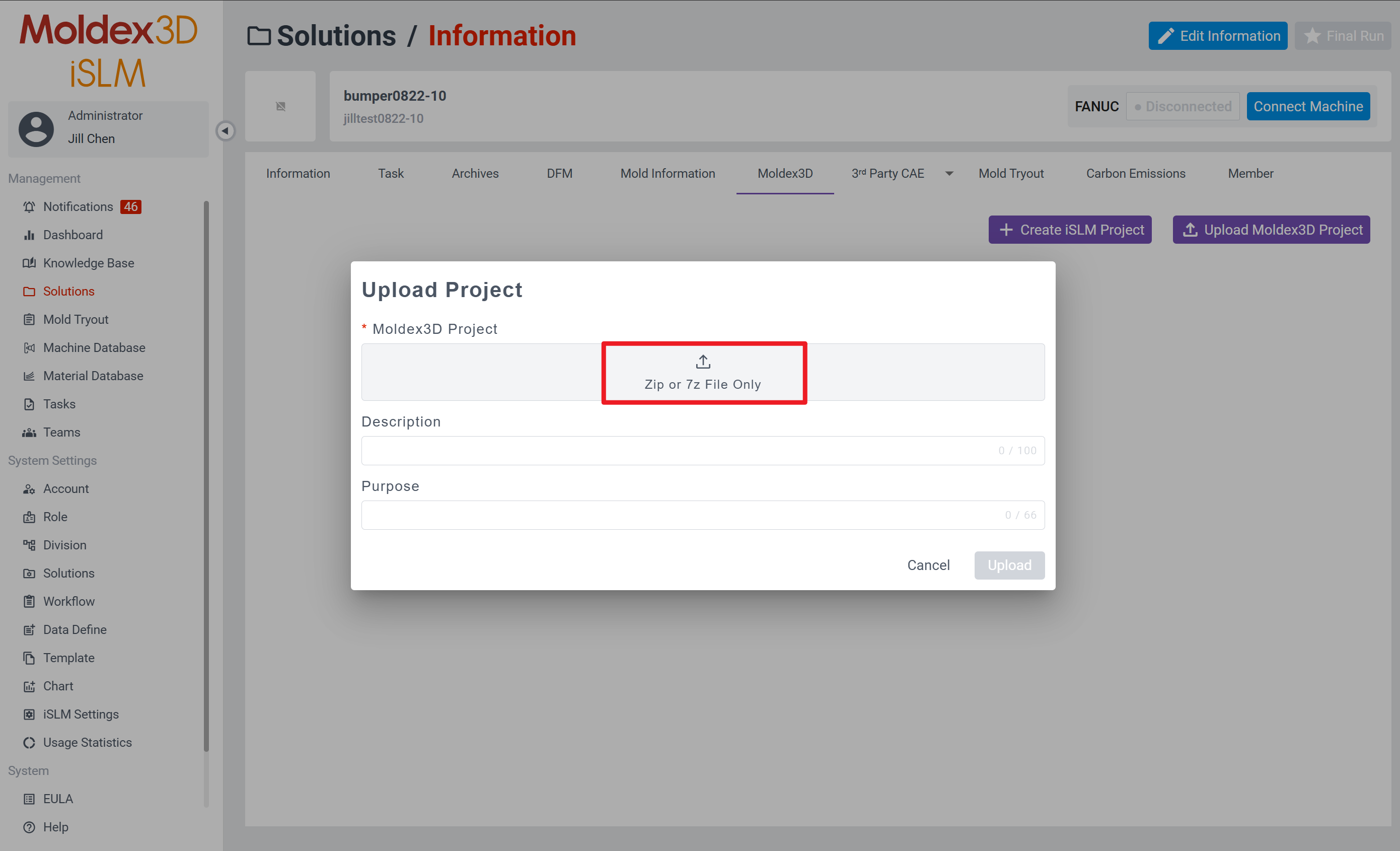
在專案的 Moldex3D 頁面中,iSLM 支援上傳單一壓縮檔上傳;此外,目前可支援 Zip 及 7z 壓縮格式
- 889 views
- 1 answers
- 1 votes


